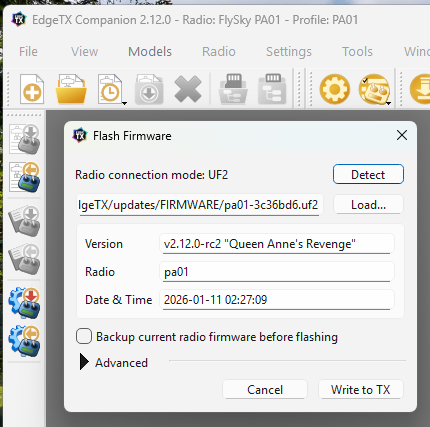
Flysky PA01 in Bootloader (UF2) Mode
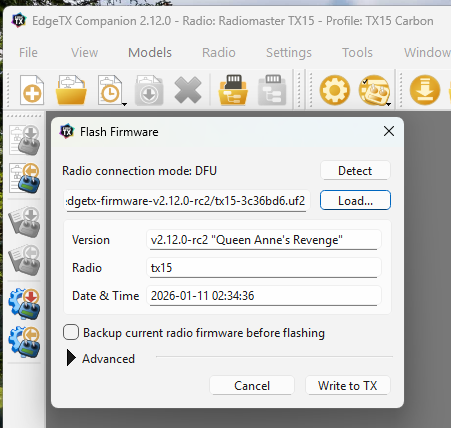
RadioMaster TX15 in DFU Mode
Flysky PA01 in Bootloader (UF2) Mode
RadioMaster TX15 in DFU Mode
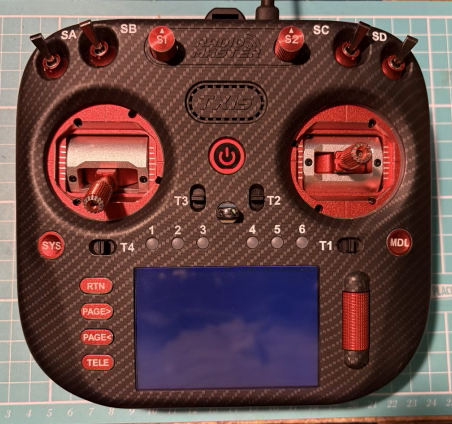
 {% endhint %}
## Troubleshooting
* If your computer does not detect the radio when in DFU mode then that usually means that there is either an issue with your USB cable / connection (i.e. the USB cable is a "charge only" cable, or you used a USB-C to USB-C cable rather than a USB-C to USB-A cable and a USB hub / converer), or an issue with the drivers on your computer. You can install the [ImpulseRC Driver Fixer](https://impulserc.blob.core.windows.net/utilities/ImpulseRC_Driver_Fixer.exe) to fix / install the necessary DFU drivers.
* If you run into an issue with updating via UF2 not being possible due to running out of space on the `EDGETX_UF2` drive, you can either try again in DFU mode, or for the moment, contact us on [Discord](https://discord.gg/wF9wUKnZ6H) to get a special recovery firmware file for your radio.
---
# Agent Instructions
This documentation is published with GitBook. GitBook is the documentation platform designed so that both humans and AI agents can read, navigate, and reason over technical content effectively. Learn more at gitbook.com.
## Querying This Documentation
If you need additional information that is not directly available in this page, you can query the documentation by asking a question.
Perform an HTTP GET request on the following URL with the `ask` and `goal` query parameters:
```
GET https://manual.edgetx.org/installing-and-updating-edgetx/updating-your-stm32h7-radio.md?ask=
{% endhint %}
## Troubleshooting
* If your computer does not detect the radio when in DFU mode then that usually means that there is either an issue with your USB cable / connection (i.e. the USB cable is a "charge only" cable, or you used a USB-C to USB-C cable rather than a USB-C to USB-A cable and a USB hub / converer), or an issue with the drivers on your computer. You can install the [ImpulseRC Driver Fixer](https://impulserc.blob.core.windows.net/utilities/ImpulseRC_Driver_Fixer.exe) to fix / install the necessary DFU drivers.
* If you run into an issue with updating via UF2 not being possible due to running out of space on the `EDGETX_UF2` drive, you can either try again in DFU mode, or for the moment, contact us on [Discord](https://discord.gg/wF9wUKnZ6H) to get a special recovery firmware file for your radio.
---
# Agent Instructions
This documentation is published with GitBook. GitBook is the documentation platform designed so that both humans and AI agents can read, navigate, and reason over technical content effectively. Learn more at gitbook.com.
## Querying This Documentation
If you need additional information that is not directly available in this page, you can query the documentation by asking a question.
Perform an HTTP GET request on the following URL with the `ask` and `goal` query parameters:
```
GET https://manual.edgetx.org/installing-and-updating-edgetx/updating-your-stm32h7-radio.md?ask=